> For the complete documentation index, see [llms.txt](https://manual.portalcagec.mg.gov.br/llms.txt). Markdown versions of documentation pages are available by appending `.md` to page URLs; this page is available as [Markdown](https://manual.portalcagec.mg.gov.br/documentacao-e-dados-cagec-tutoriais/consulta-as-pastas-digitais.md).

# Consulta às Pastas Digitais

O Portal Cagec disponibiliza, além da Consulta ao CRC, o acesso às pastas digitais de todos os Parceiros/Convenentes cadastrados.

\
O acesso à pasta digital possibilita que o usuário tenha acesso a <mark style="color:orange;">**toda a documentação encaminhada pelas entidades através de**</mark><mark style="color:orange;">**&#x20;**</mark>*<mark style="color:orange;">**download**</mark>*<mark style="color:orange;">**&#x20;&#x20;**</mark><mark style="color:orange;">**bem como a situação de Regularidade**</mark> ou Irregularidade do cadastro geral ou de documentos específicos da entidade.

***

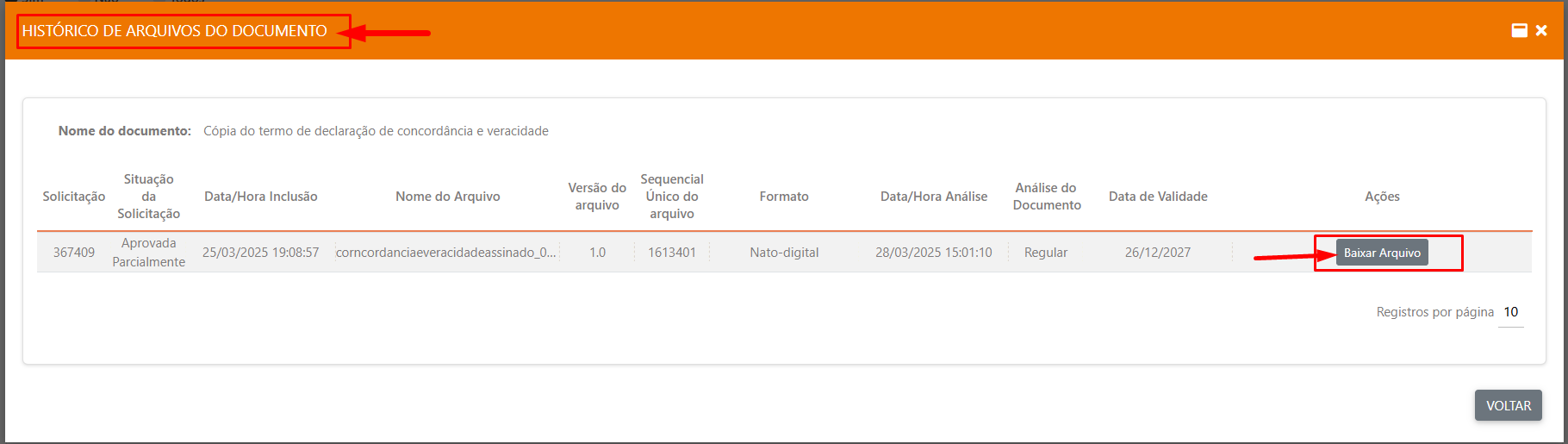
**1º PASSO:** Faça Login no [Portal Cagec ](http://www.portalcagec.mg.gov.br/)

<figure><img src="/files/8Ig7BrWhQaFkDNJM4ZBC" alt=""><figcaption></figcaption></figure>

**2º PASSO:** Clique em **"Pasta Digital"**, em seguida, **"Consultar pasta digital"**<br>

<figure><img src="/files/4WVd6EeNC2BbQ7MspGNW" alt=""><figcaption></figcaption></figure>

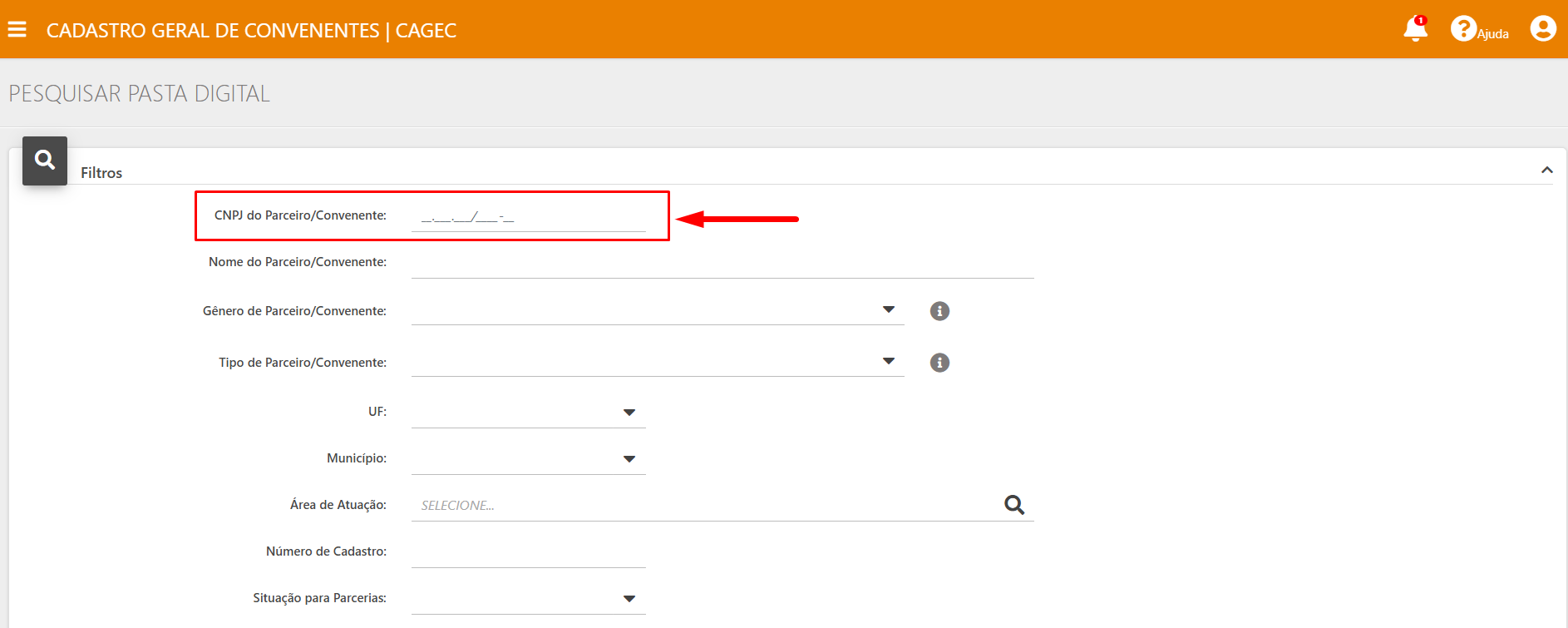
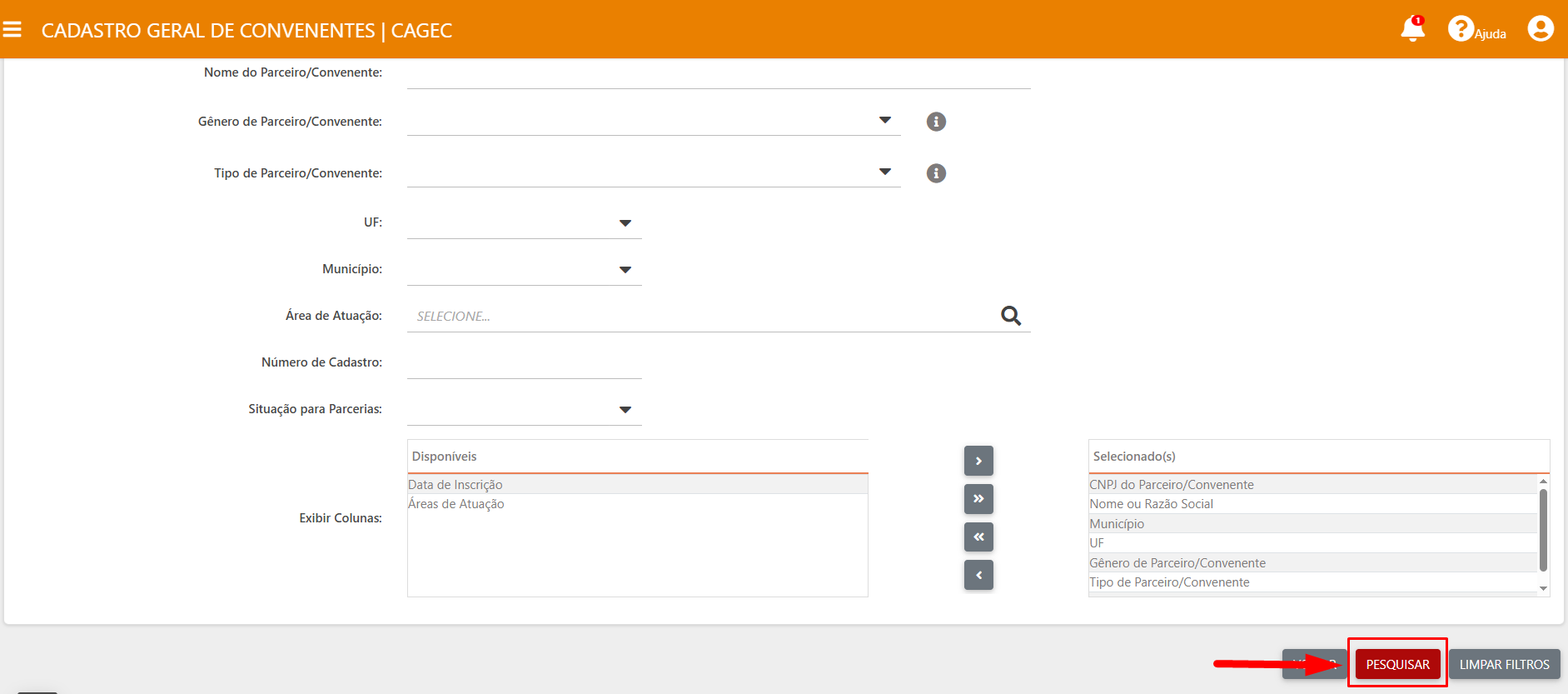
**3º PASSO:** Ao clicar em **"Consultar Pasta Digital"** o sistema direcionará o usuário para a página ilustrada abaixo, digite o CNPJ e clique no ícone "**Pesquisar**" <br>

<figure><img src="/files/0PA1fm2P6gwk2jxV1OJW" alt=""><figcaption></figcaption></figure>

<figure><img src="/files/382vZY0oRfF9kN1SVgLG" alt=""><figcaption></figcaption></figure>

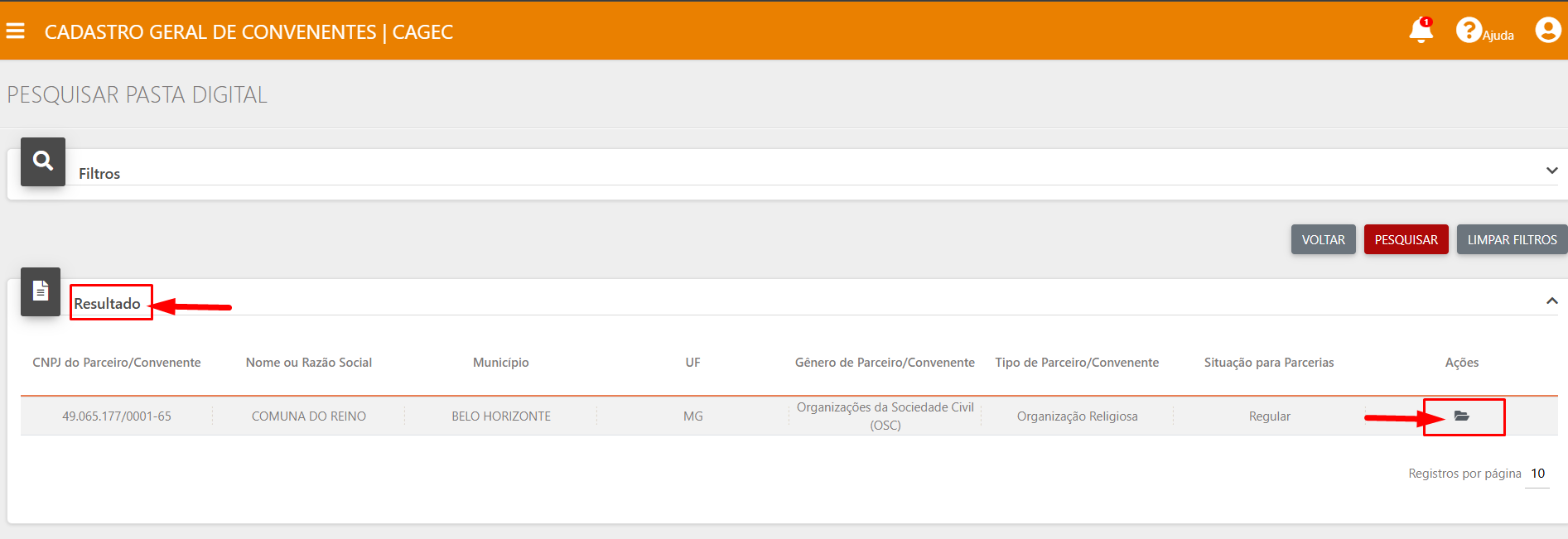
**4º PASSO:** Após localizar o Parceiro/Convenente pesquisado, o usuário terá acesso à documentação vigente anexada pela instituição, organizada por categorias conforme as obrigações previstas no Anexo da Resolução Conjunta SEGOV/CGE nº 02/2024 e suas alterações. Para visualizá-la, clique no ícone "Ações" e selecione a opção "Visualizar". CGE 02/2024 e suas respectivas alterações. Clicar no ícone "**Ações**" na opção "**Visualizar**"

<figure><img src="/files/9QJsA767h1fOhx3mNjyB" alt=""><figcaption></figcaption></figure>

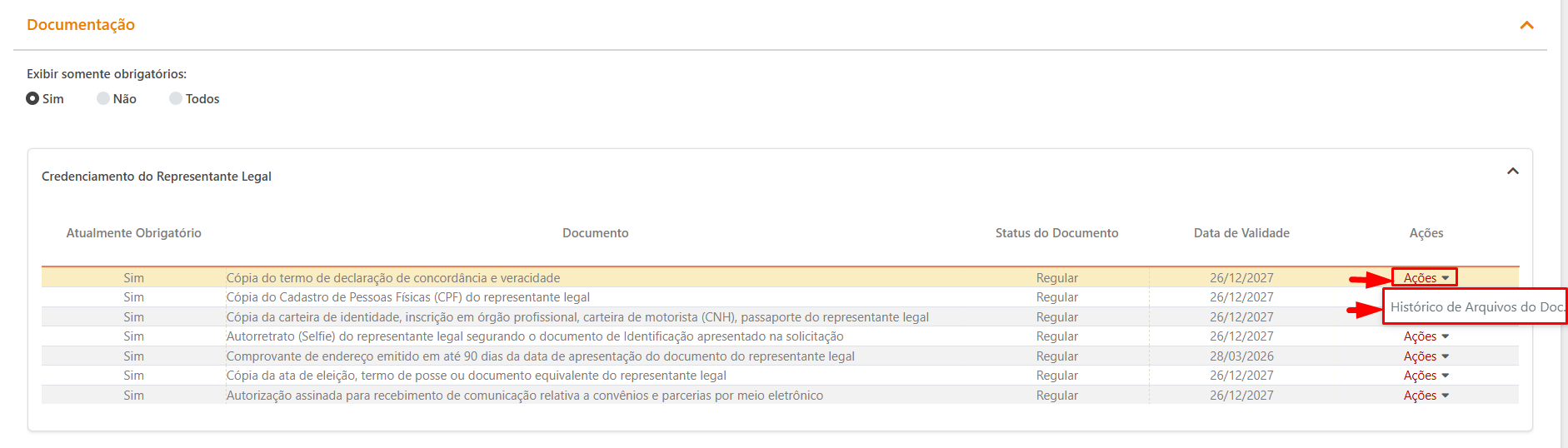
**7º PASSO:** \
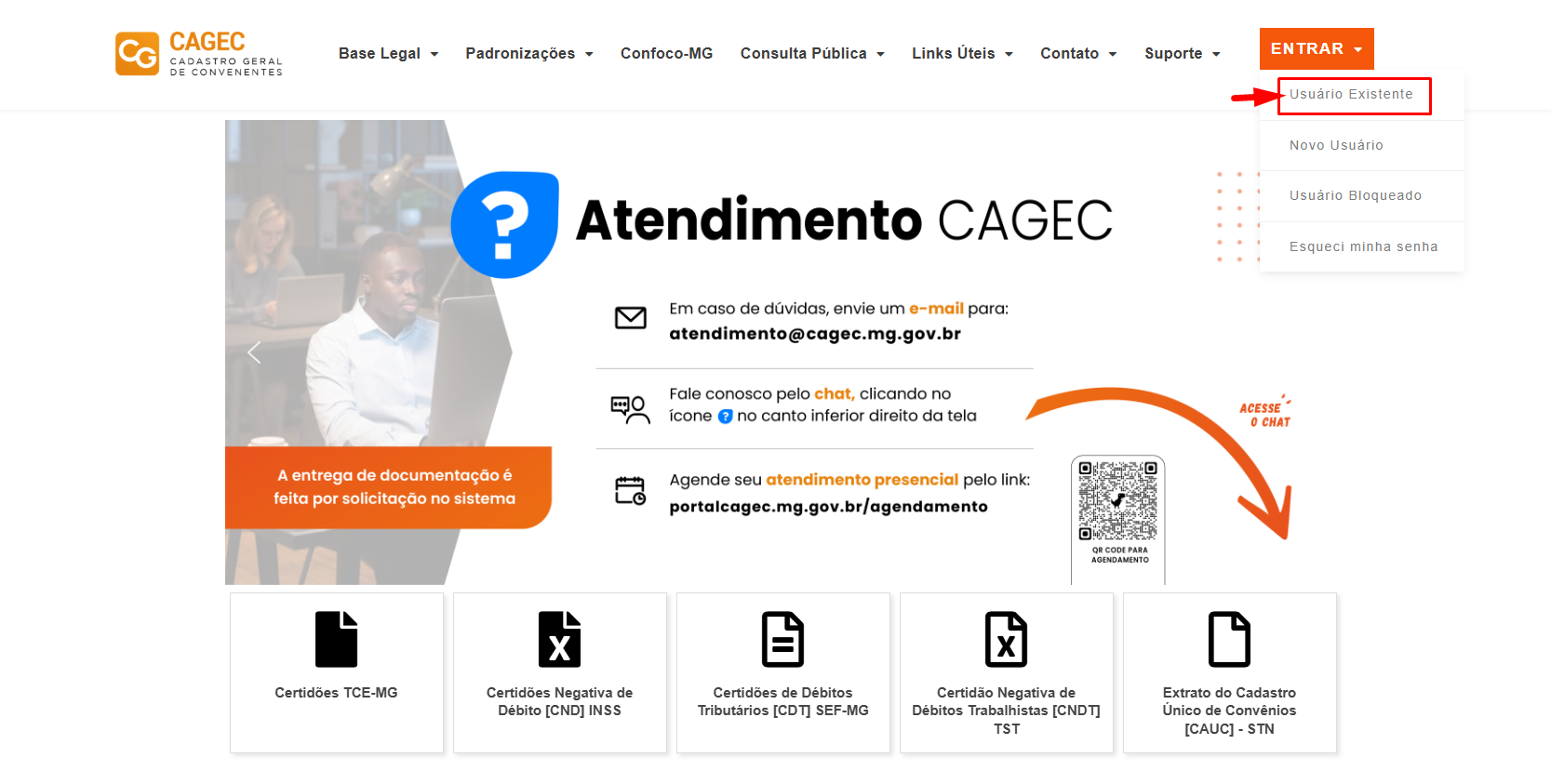
Para visualizar o documento, clique em **"Ações"** em "**Histórico de Arquivos do Documento".**
<figure><img src="/files/q3Wi74D9gEt8Ajl30LYT" alt=""><figcaption></figcaption></figure>

<figure><img src="/files/zj1M03YQetJZIhcTGQ33" alt=""><figcaption></figcaption></figure>


---

# Agent Instructions
This documentation is published with GitBook. GitBook is the documentation platform designed so that both humans and AI agents can read, navigate, and reason over technical content effectively. Learn more at gitbook.com.

## Querying This Documentation
If you need additional information that is not directly available in this page, you can query the documentation dynamically by asking a question.

Perform an HTTP GET request on the current page URL with the `ask` query parameter:

```
GET https://manual.portalcagec.mg.gov.br/documentacao-e-dados-cagec-tutoriais/consulta-as-pastas-digitais.md?ask=<question>
```

The question should be specific, self-contained, and written in natural language.
The response will contain a direct answer to the question and relevant excerpts and sources from the documentation.

Use this mechanism when the answer is not explicitly present in the current page, you need clarification or additional context, or you want to retrieve related documentation sections.