> For the complete documentation index, see [llms.txt](https://manual.portalcagec.mg.gov.br/llms.txt). Markdown versions of documentation pages are available by appending `.md` to page URLs; this page is available as [Markdown](https://manual.portalcagec.mg.gov.br/acessos-iniciais-e-gerenciamento-tutoriais/representante-legal/gerir-responsaveis-pelas-informacoes.md).
# Gerir Responsáveis pelas Informações
O Representante Legal pode fazer a gestão das pessoas (usuários do sistema CAGEC) que podem atuar em nome do Parceiro / Convenente.
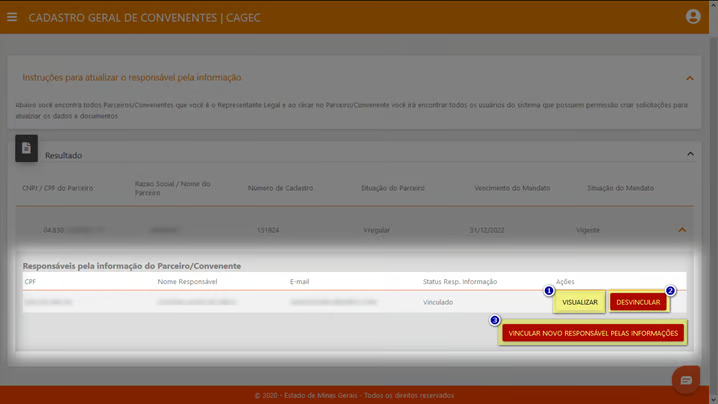
A gestão dos responsáveis englobam visualizar (1), desvincular/vincular (2) e vincular novo responsável pelas informações (3), conforme a imagem abaixo:
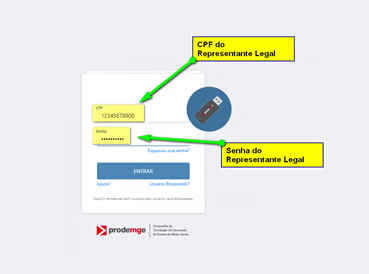
**1º PASSO:** Acessar o Portal CAGEC e clicar em “ENTRAR”
**2º PASSO:** Realizar o login no sistema CAGEC
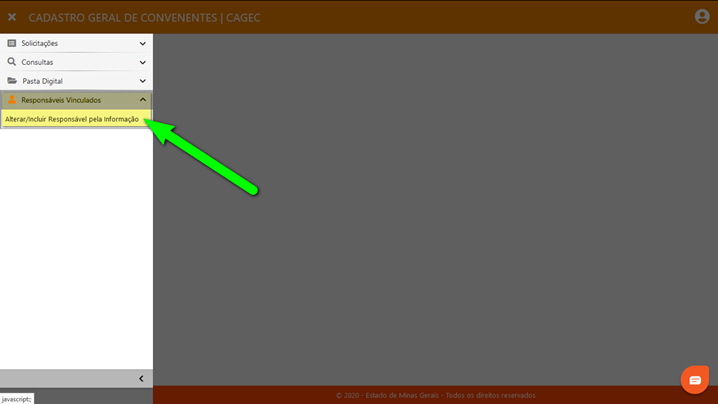
**3º PASSO:** Acessar o menu do sistema e escolhe a opção “**Responsáveis Vinculados**” >> “**Alterar/Incluir Responsável pela Informação**”
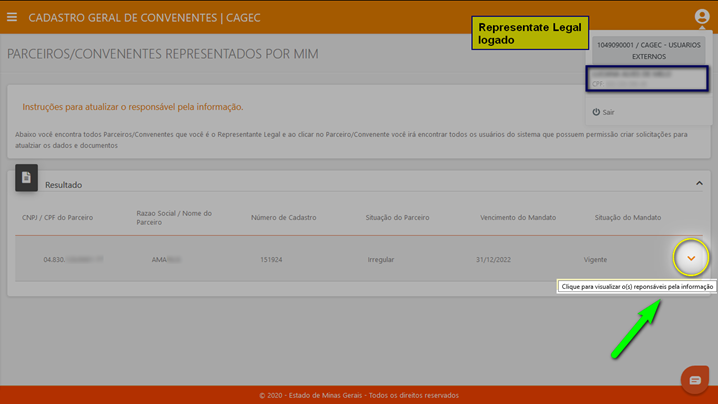
Perceba que, automaticamente, o sistema listará o(s) Parceiro/Convenente(s) em que o usuário logado é o representante legal.
**4º PASSO:** Para o Parceiro/Convenente desejado, clique em \[ **v** ] “Clique para visualizar o(s) responsável pela informação”.
Perceba que, automaticamente, o sistema listará o(s) Responsável(is) pela Informação vinculado Parceiro/Convenente selecionado.
**5º PASSO:** Após visualizar os Responsáveis pela Informação de cada Parceiro/convenente, o Representante Legal poderá realizar a gestão por meio das possibilidades abaixo:
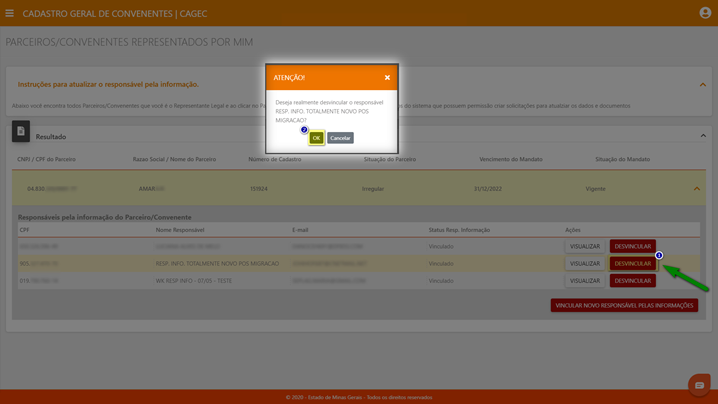
5.1 – **DESVINCULAR** o Responsável pela Informação (caso esteja vinculado)
{% hint style="warning" %}
***PRÉ-REQUISITO***: o Responsável não pode possuir uma solicitação em aberto no sistema (em criação ou em processo de análise)
{% endhint %}
5.1- na ‘linha’ do Responsável a ser desvinculado, clicar em “**DESVINCULAR**”
5.1.2- confirma a desvinculação, clicando em “**OK**”.
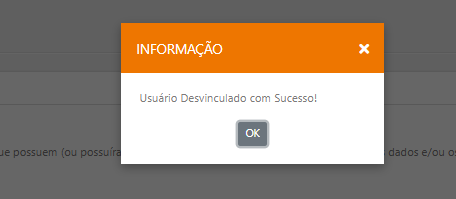
Será exibida a mensagem de sucesso.
**6º PASSO: VINCULAR** o Responsável pela Informação novamente (caso esteja desvinculado).
Note que nesse caso, o visualizar fica desabilitado.
**7º PASSO:** O representante legal pode adicionar novos responsáveis, clicando em “**VINCULAR NOVO RESPONSÁVEL PELAS INFORMAÇÕES**”.
{% hint style="warning" %}
***PRÉ-REQUISITO***: o usuário (CPF) já deve existir (ser cadastrado) no sistema CAGEC
{% endhint %}
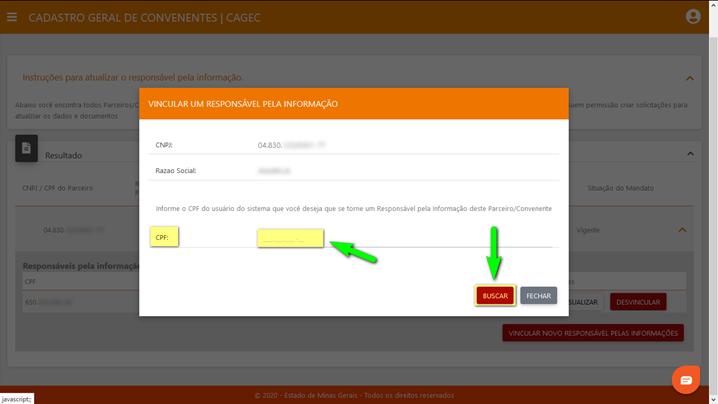
7.1 clicar em “**VINCULAR NOVO RESPONSÁVEL PELAS INFORMAÇÕES**”
7.2 informe o CPF do usuário que será o novo Responsável pela Informação e clique em “**BUSCAR**”
7.3 confirme se o Nome do Usuário está correto e clique em “**VINCULAR**”
Será exibida a mensagem de sucesso.
{% hint style="info" %}
Perceba que o usuário vinculado passa a ser listado (exibido) como um dos Responsáveis pela Informação do Parceiro / Convenente.
{% endhint %}